How to Upgrade to Windows 11 From Older Versions
9th November,2021Microsoft is confident of offering the best experience with its new OS Windows 11, CEO Satya Nadella began openly discussing "the next generation of Windows",which is the successor to Windows 10. It was released on 5th of October 2021. Fortunately, you can freely upgrade to Windows 11 from Windows 7, 8.1, and 10.
You might be wondering What's new in the update? The new update of operating system has amazing new features and a re-designed UI. The complete operating system has a softer, rounder look and feel to provide a unique experience in Windows 11. For example, the Start button and the pinned apps are moved to the center of the taskbar. And to add to that, Windows 11 has introduced AI-powered desktop widgets along with communication features to easily connect with friends and family,and many more..
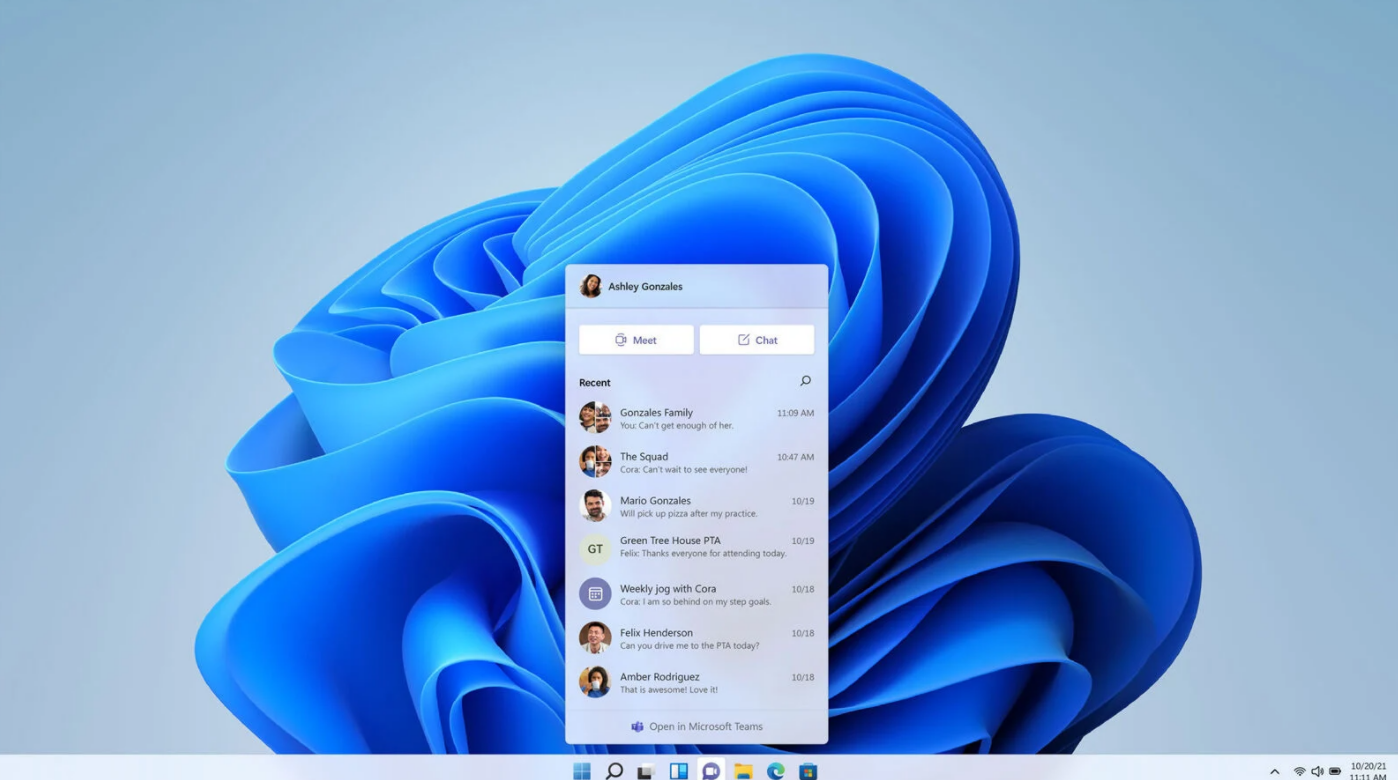
These changes are simple yet meaningful enough to make you try out Windows 11. But how to upgrade? Let me take you through the upgrade process.
You need to run Check to make sure your PC supports Windows 11. To run the check, follow the below-given steps:-
Open the official page of Windows 11 in a web browser.
-
Under check for compatibility , click the link to download it.
-
Once it gets downloaded, open the app and click Check Now.
-
If you see a message box “This PC can run Windows 11”, you can run Windows 11 on your PC. Otherwise, you will be presented with a error message shown below
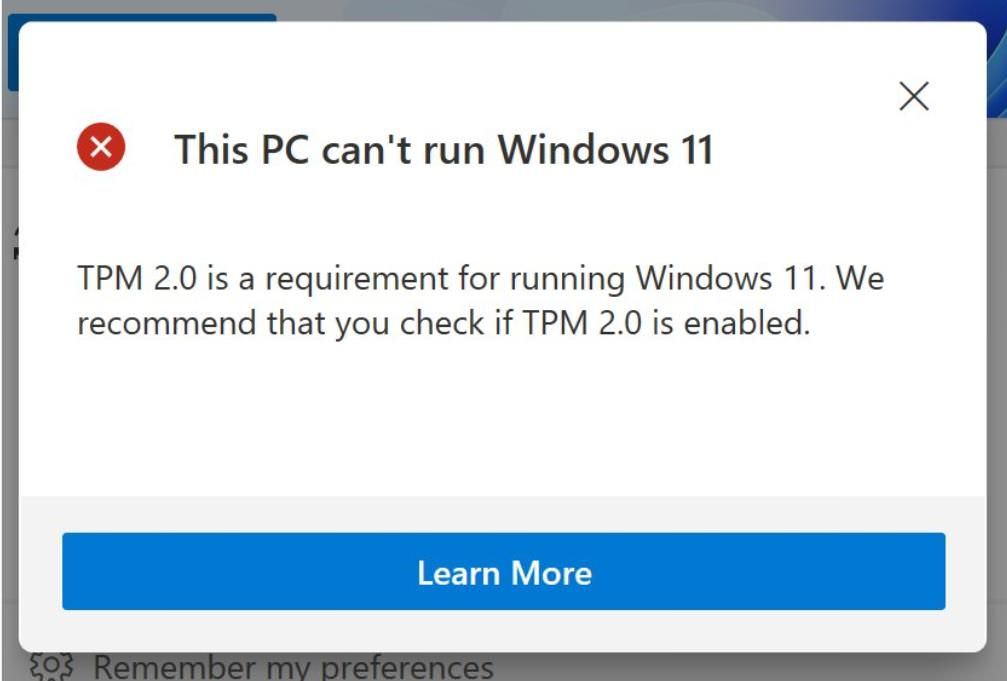
If your machine can run Windows 11, Great! Lets move further. You can follow the given step-by-step guide to upgrade to Windows 11.
Upgrade from Windows 10 to 11
As Windows 11 is available for download, you can get it like any other update on Windows 10: from the Windows Settings. Follow the steps below to update your system to Windows 11.
-
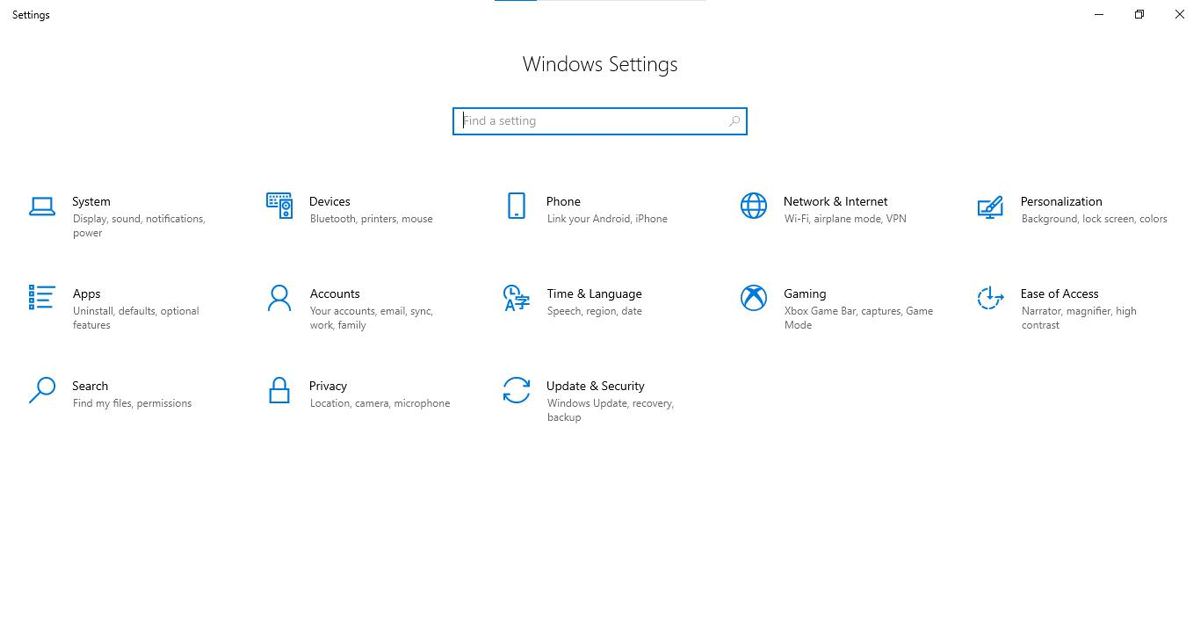
Open Settings from the Start Menu > click Updates & Security.
-
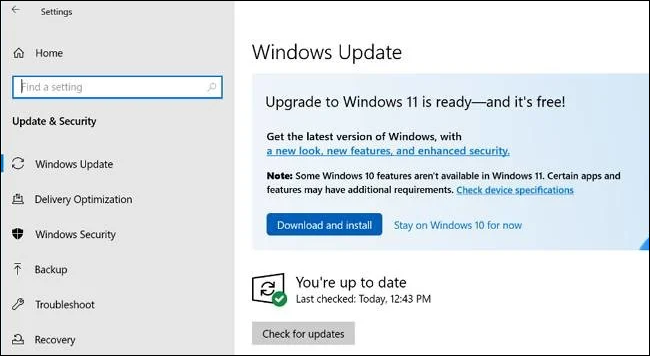
Click on Windows Update, then click Check for updates.
-
The update will be shown as Feature Update to Windows 11.
-
Click on Download, then click Install once it is downloaded.
-
Restart the machine after the feature update is installed. You will see the welcome screen to set up the PC once the update has finished.
Upgrade from Windows 7 / 8.1 to 11 (Not Recommended)
If you are using Windows 7 or 8.1, you can still upgrade to Windows 11, but it is difficult. The reason is that the support for Windows 7 no more exists while the support for Windows 8.1 ended in 2018. That is why they will not receive feature updates to Windows 11. But you can do a clean install of Windows 11.
But, it comes with a drawback. Performing a clean install erases all data on your machine. Hence, you must back up all your data before installing Windows 11. And after the installation, you can restore data from the backup.
There are many Youtube Videos on how to do it. You can follow those on your own risk.
That is all about freely upgrading to Windows 11. I am highly impressed by the design and look and feel of Windows 11.
That said, Windows 11 claims to be one of the best operating systems in the history of operating systems by Microsoft. As it offers the improved Microsoft Store, better support for Android apps, and more features.
Go Back